Iterate in the browser
Compare changes on your page and keep the version you want.
On this page 9 sections
Name or pick a heading, card, or section you want to improve. In this walkthrough, you will describe a change, compare alternatives in the page, and keep one in your project’s source.
The screenshots show a real Live Mode session on a fictional book-club page. The example reorganizes the event card so the date is easier to scan and the reservation button sits with the event details. The content and visual identity stay the same.
Before you start
You need Impeccable installed, an agent session that can work on your project, and a web page running locally. Live Mode supports common development servers and static HTML. See getting started if you still need to install it.
Give the page enough real content to judge the result. Saved context from init and document helps the agent preserve your product and visual decisions. You can also try generate without those files; it reads the identity from the current page.
Start from a written request
If you know what you want to change, name it in your agent chat:
/impeccable generate 3 layout variants of the event card. Make the date easier to scan and keep the reservation button with the event details.Impeccable connects to the page, finds the card, and starts generating alternatives. Keep your agent session active, then skip to Compare the variations below. The comparison and acceptance controls are the same.
Give the command a direction and an element; the count is optional and defaults to three. See the generate reference for more examples. To pick and annotate the element yourself, follow the Live Mode steps below.
1. Start Live Mode
In your agent chat, run:
/impeccable liveImpeccable connects to the project and opens the page with its toolbar. Keep the agent session active while you use the controls.
What happens during first-time setup?
Impeccable identifies the page your development server serves and prepares its Live Mode configuration. A local helper connects the browser controls to your agent.
Some projects have a Content Security Policy that blocks this connection. If a change is needed, Impeccable explains it and asks before modifying the policy. The exact change depends on your framework; some setups need a manual adjustment.
Open your application’s URL. The helper server’s address is a different service, not the page you are editing.
2. Pick the part you want to change
Enable Pick in the toolbar, then click the heading, card, or section. A highlight shows the selection, and a request field appears beside it.
For this example, select the whole event card and enter:
Make the next event easier to scan and the reservation action easier to find. Keep all event details, fonts, and colors.
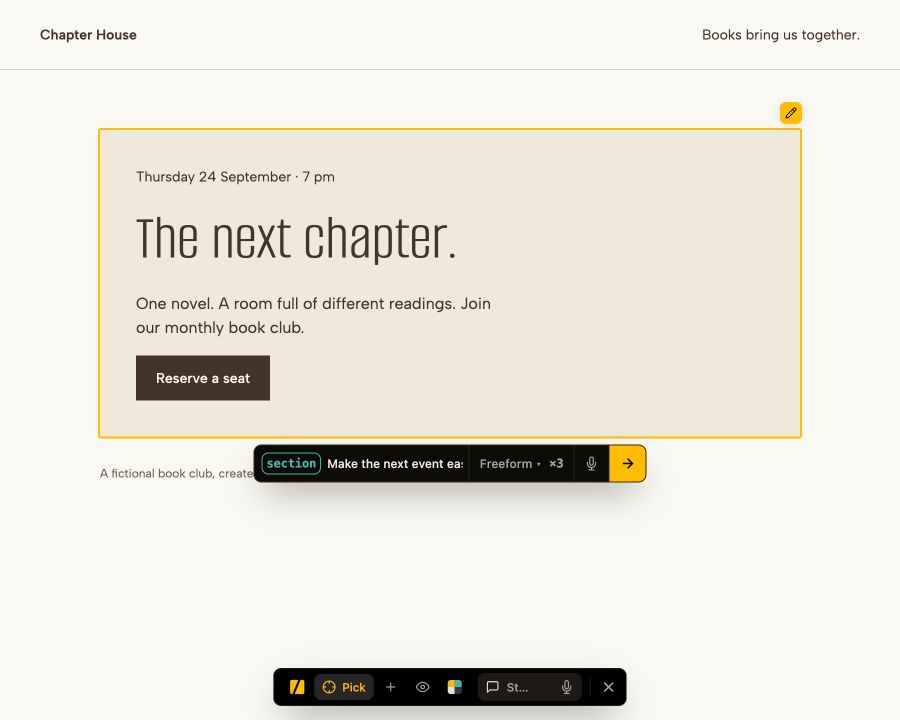
You can choose an action such as layout or bolder to focus the work. Comments and drawn strokes can point to a particular part of the selection. A plain request is enough to start.
Press the generate arrow, labeled Generate variants. Leave the agent working while the alternatives are prepared.
3. Compare the variations
Use the previous and next controls to move through the alternatives. The counter shows which one you are viewing.
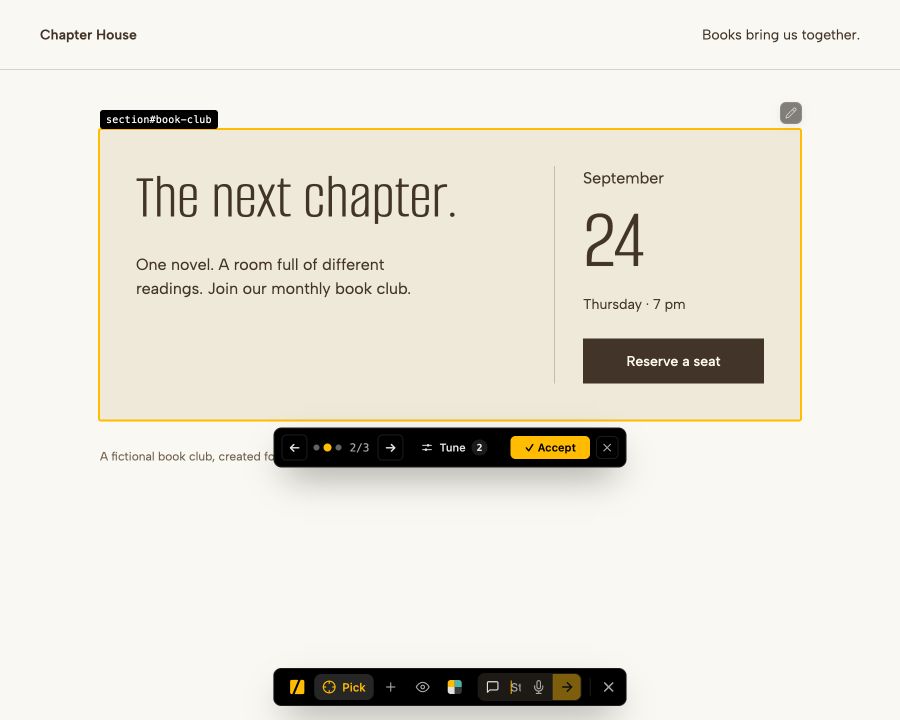
Look at the result in context: what leads your eye, how much space it takes, and whether it still belongs to the page. Variations preserve your design identity by default. Ask for a redesign explicitly when you want a different identity.
Some selections offer Tune controls for qualities such as spacing or emphasis. These adjust the current variation without another generation round. In this example, you can adjust the space between groups and the headline size.
If none of the alternatives helps, discard the set and try a more specific request.
4. Keep one and check it
Choose Accept to keep the current variation. Impeccable writes the result to the real source and removes temporary preview code. Discarding the set restores the original selection instead.
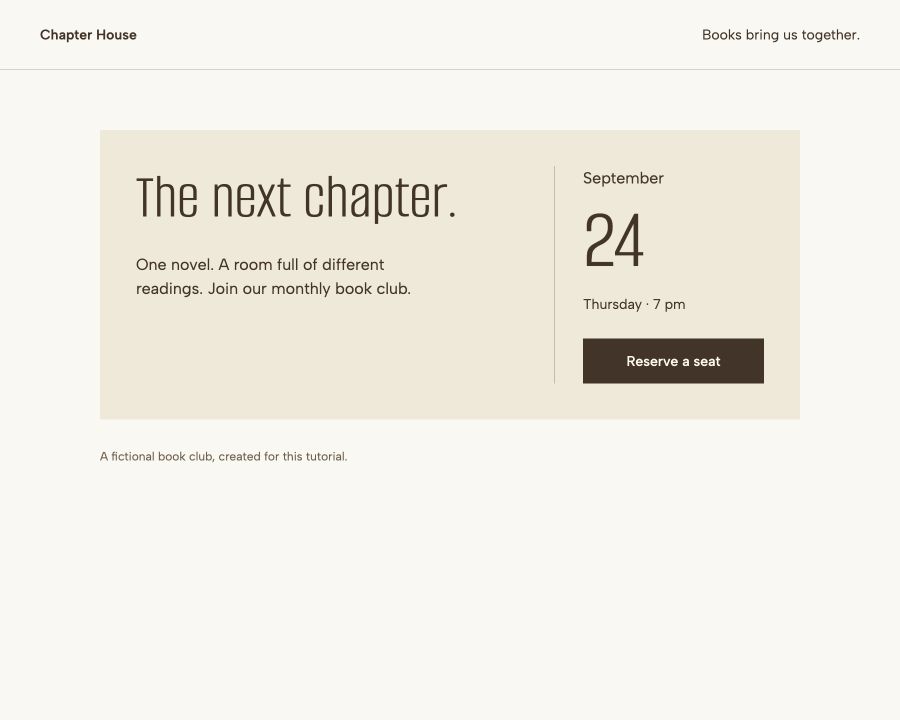
Review the source diff and try the affected interface. Check narrow screens and any behavior the visual comparison did not exercise. If the page is generated from another file, follow any source-mapping message so the change reaches that original file.
5. Finish the session
Accept or discard the current set, then use the exit control or tell the agent to stop Live Mode. It stops the helper and removes the temporary connection. Keep the project configuration for your next session.
If you started with generate, Impeccable closes the Live Mode connection after handling your choice. Your development server keeps running with the accepted result.
Try page-wide steering
For a change beyond one selection, use Steer in the toolbar. Type or speak a direction such as “make the event date easier to find throughout this page.” The agent works on that request without generating a set of element variants first.
You can also insert a new element or edit text directly and apply it to source. The Live Mode reference explains these options.
If something gets stuck
- No toolbar: check the agent’s setup message and confirm that you opened the application URL. Ask it to check the connection and any policy blocking it.
- Generation stops responding: keep the agent session active. If it was interrupted, ask it to resume Live Mode and check the pending session before starting again.
- The result feels off-brand: check the request and the project’s recorded context. Refresh stale context, and name the parts of the current design you want to keep.
- Source cannot be located: follow the agent’s explanation. Do not force a change into generated output that the next build will replace.
Use critique if you want help deciding what to improve, or describe a new page directly to Impeccable.