Enable image generation
Push the visual direction further.
On this page 6 sections
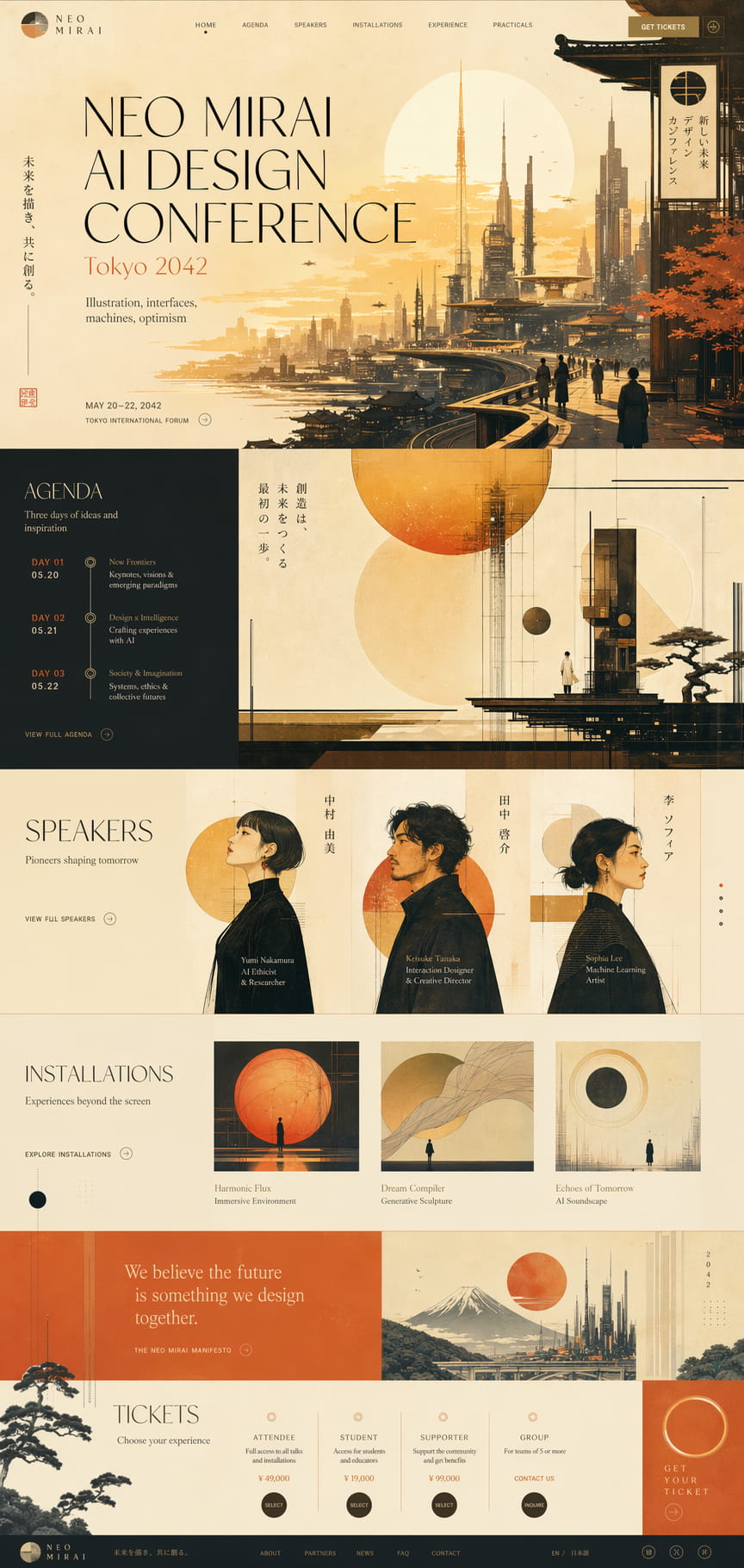
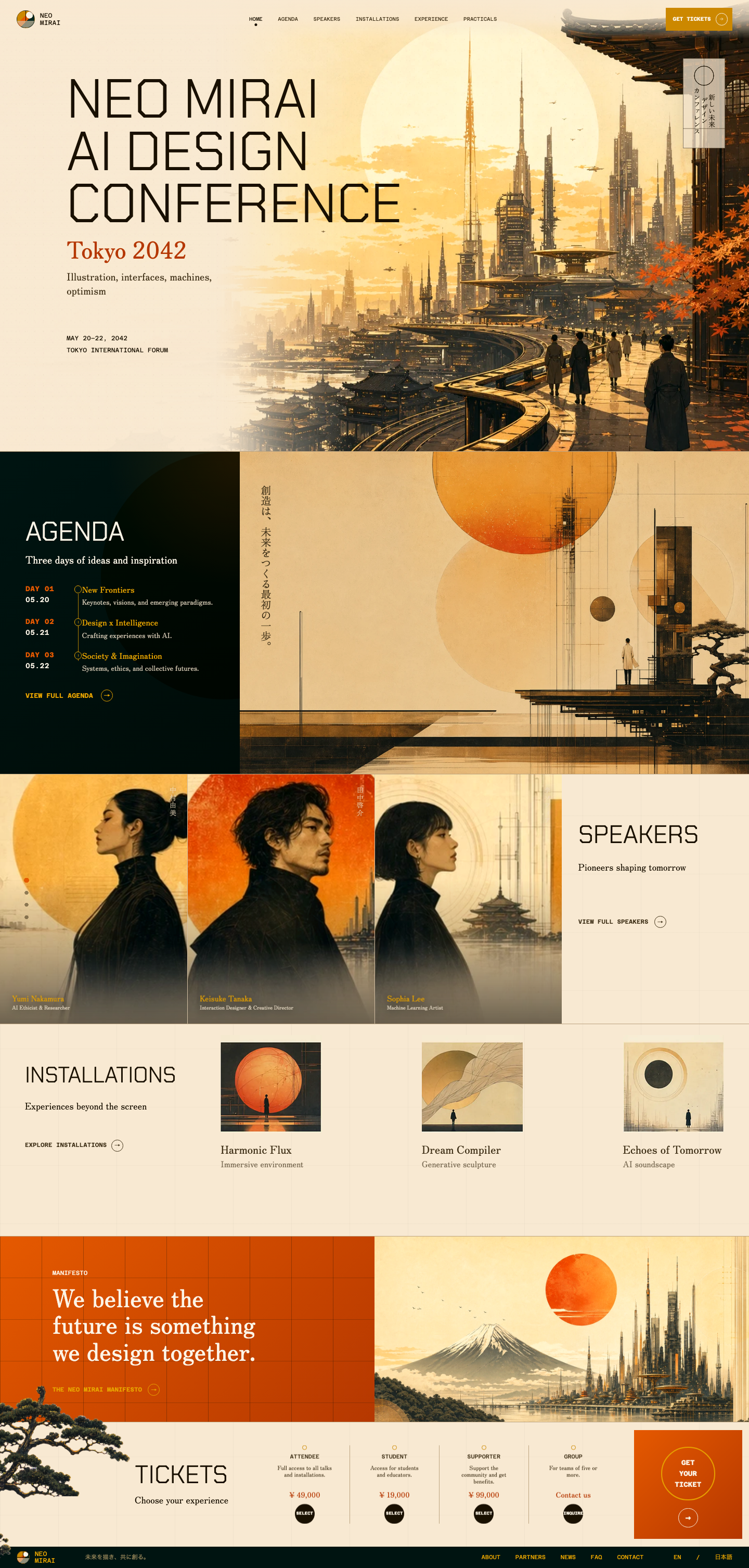
Image generation gives Impeccable room to explore bolder compositions and more creative visual directions. A generated mockup can set a visual target beyond what the coding model would naturally build on its own.
What you gain, and what takes work
- Mockup first (comp-led): more visual ambition. You can choose a direction that pushes beyond the coding model’s usual range. But image-to-code translation is lossy: some of the mockup’s character and detail will change or get lost. Impeccable helps close that gap; expect a few rounds of prompting and review, not a one-shot match.
- Without image generation: a more predictable first build. Impeccable still proposes a concept, then builds directly in code (code-led). The result tends to look more coherent out of the box, but the model builds within its natural visual ceiling, so the execution is usually less ambitious.
Choose comp-led when the visual direction matters enough to spend time refining it. Choose code-led when you want a strong first implementation with less work matching a visual reference. Image generation can also create illustrations and other finished assets; enabling it leaves both build workflows available.
Enable it for your coding tool
Choose your setup path:
- Use built-in image generationFor tools such as Codex or Cursor. No OpenAI API key needed.
- Connect an OpenAI API keyFor tools without image generation. Uses your API project’s billing.
Already set up? Check that you’re ready.
Use your coding tool’s image generation
Impeccable uses the coding tool’s image-generation tool first when one is available. You do not need to supply an OpenAI API key for this path.
- Codex: ask for an image in your project’s chat, or include
$imagegen. Built-in generation counts toward Codex usage limits. Codex image generation. - Cursor: ask Agent to generate an image. It can preview it and save it into your project. Cursor’s image-generation guidance.
Availability depends on your tool, account, and workspace settings. If the agent has no image-generation tool, use the API path below. Being able to read screenshots does not mean it can generate images.
Use an OpenAI API key
For a coding tool without built-in image generation, Impeccable includes a fallback that uses OPENAI_API_KEY from the agent’s environment. The agent needs permission to run the helper and reach the OpenAI API.
1. Create a key and check API billing
Create a key in your OpenAI API project and make sure the project has billing and access to image generation. See the OpenAI API quickstart and image-generation requirements.
2. Make the key available to your agent
For a terminal-based coding tool, set the variable in your terminal, then launch the tool from that same terminal. Replace the placeholder locally with your key.
macOS or Linux:
export OPENAI_API_KEY="your_api_key_here"Windows PowerShell:
$env:OPENAI_API_KEY = "your_api_key_here"These examples set the key for the current terminal session and tools launched from it. For future sessions, use your tool’s environment or secret configuration.
The key must be available where the agent runs commands. Restart the agent session after configuring it. Keep keys out of chat, committed files, and browser-facing variables such as PUBLIC_* or VITE_*.
Desktop apps, remote workspaces, containers, and .env files
Use your tool’s environment or secret configuration. Setting a key in an unrelated terminal does not update an already-running app or a remote machine.
A project .env file works only if your launch setup loads it into the agent’s command environment. The fallback reads OPENAI_API_KEY; a .env file alone does not establish readiness.
Check that you’re ready
Ask in the project’s agent chat:
/impeccable check whether image generation is available for this project. Tell me whether you can use a built-in image tool or the OpenAI API fallback. Do not generate an image or print any secret values.This checks tool access or key presence without generating an image. To verify that generation succeeds, ask for a small test image; it uses your tool’s image allowance or API billing.
Check the API key from the agent’s terminal
Have the agent run this in its own command environment. It prints only whether the variable is present:
node -e 'console.log(process.env.OPENAI_API_KEY ? "OPENAI_API_KEY is set" : "OPENAI_API_KEY is missing")'A detected key does not confirm that it is valid, billing is active, or the network permits a request.
Then continue with Build something new. When image generation is available and no preference is saved, Impeccable defaults to mockup first (comp-led). You can choose build directly (code-led) in the picker or ask Impeccable to save it as your default.
What’s the difference between a mockup and a finished asset?
A mockup, or comp, is an image of the proposed interface. You approve the composition, then the agent builds a working interface against that visual target. The mockup does not replace working controls, accessible text, or responsive layouts.
An asset is an image the interface actually uses: a product illustration, background, or cutout. Either build workflow can use generated assets. Choosing code-led skips the mockup approval stage; it does not disable image generation for assets you need.
If image generation is unavailable
The agent can read screenshots but cannot generate images
Check for an actual image-generation tool, or configure the API fallback. Vision support alone is not enough.
The key is set in your terminal but missing for the agent
Set it where the agent runs. Restart the app or terminal tool, and check any remote or container environment separately.
A key is detected but generation fails
Read the returned error. Check key validity, project permissions, image-model access, API billing, usage limits, and network access as applicable.
The picker has no mockup/code switch
Impeccable uses code-led when no image generation is available. Check readiness in a fresh session after configuring access.
Image generation works, but the picker starts in code
Check your saved buildPath preference. Change the default or switch for this session.
You can keep working without image generation. Impeccable builds directly in code, and you review the design in the running interface.